

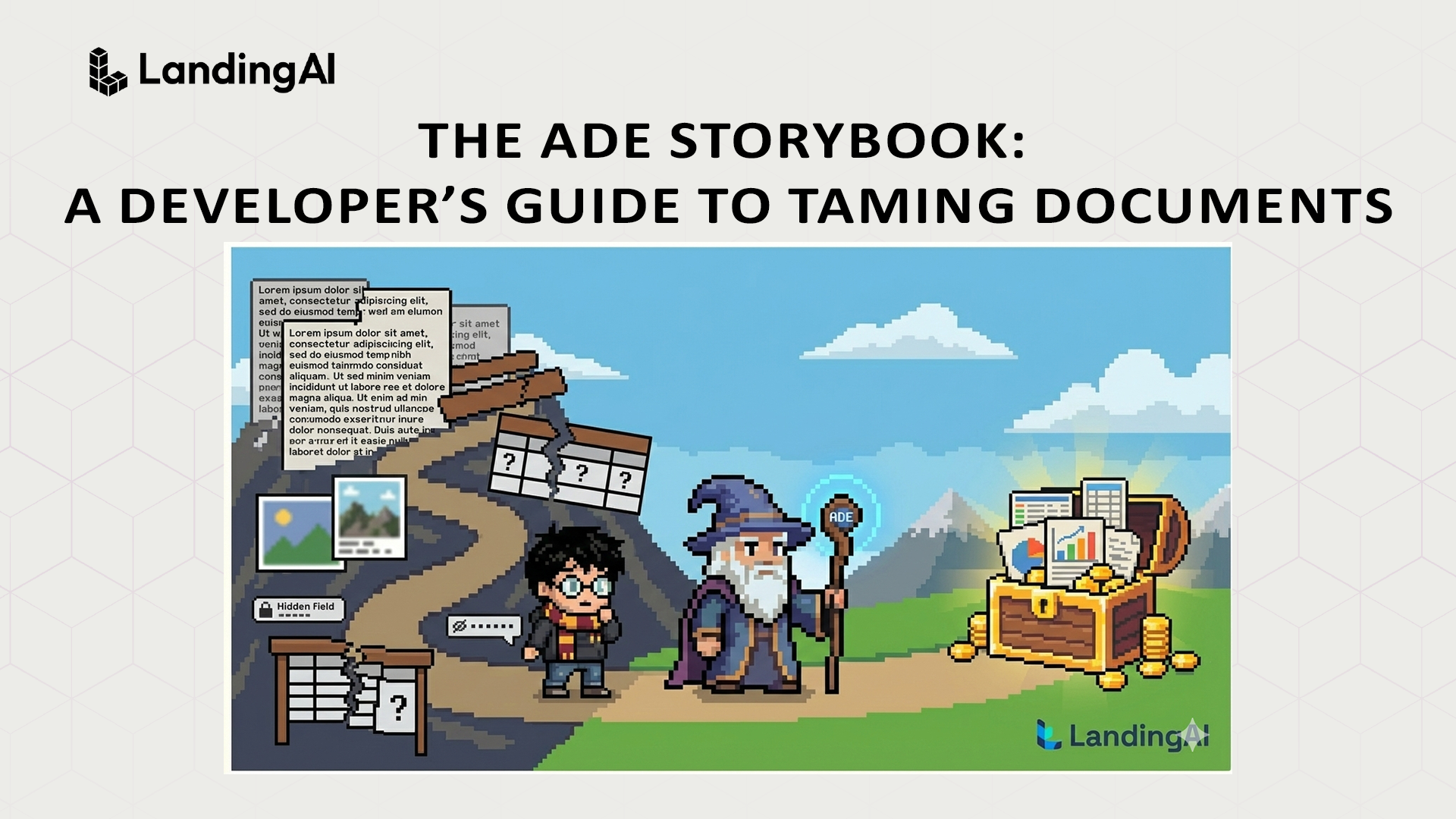

Once upon a time, in the chaotic Kingdom of Unstructured Data, there lived a Developer Wizard (that’s ‘You’). You were tasked with a mighty quest: to take a mountain of messy documents—invoices, bank statements, engineering diagrams and forms—and turn them into readable, structured data that can be used to automate critical workflows.
The path might seem daunting. There are unstructured blocks of text, tricky tables, blurry images and hidden fields. But fear not! With ADE (Agentic Document Extraction) as your guide, you can get past these obstacles and go straight to your data treasure.
⚒️ Your Data-Taming Crew
In this adventure, you will meet your specialized crew:
- The Parser: Who turns raw pixels into machine-readable text.
- The Extractor: Who takes your Wish List (Schema) and hunts down exactly the data you asked for.
- The Splitter: Who takes a messy pile of mixed documents and separates them into logical subdocuments.
- The Navigator: Who knows the lay of the land (Visual Grounding) and marks the exact coordinates of every discovery.
Part 1 The Adventure Begins: Your First Excavation
In this first chapter, we will walk through the “Baby Path”: the simplest way to go from a raw mountain of files to a polished data gem. Throughout this journey, we will be speaking in Python.
Step 1: Equipping Your Gear (Setup)
Every wizard needs the right tools. Before we start decoding these documents, we need to equip our spellbook (install the library) and unlock our magical access (the API key).
# Equip your tools

pip install landingai-ade

export VISION_AGENT_API_KEY="vz_..."
Next, we initialize our command center—the LandingAIADE client. This client object is what you’ll use for all ADE operations; it is the central terminal where you issue orders and receive intelligence.
from landingai_ade import LandingAIADE

from pathlib import Path

# Set up the client

client = LandingAIADE()

# Point to the file

file_path = Path("invoice.pdf")
Step 2: The Parser
The Challenge: The Problem with Pixels
Before we can extract any data treasure, we face a major obstacle: Computers cannot read PDFs like humans do. To you, an invoice is a clear list of items and prices. To a computer, a PDF or image is just a “flat” grid of millions of colored pixels.
The Solution: The “Parser”
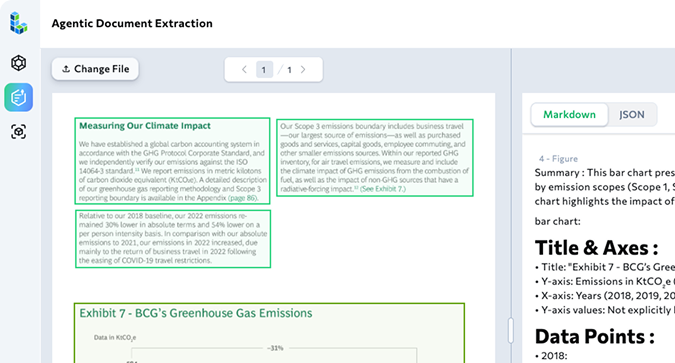
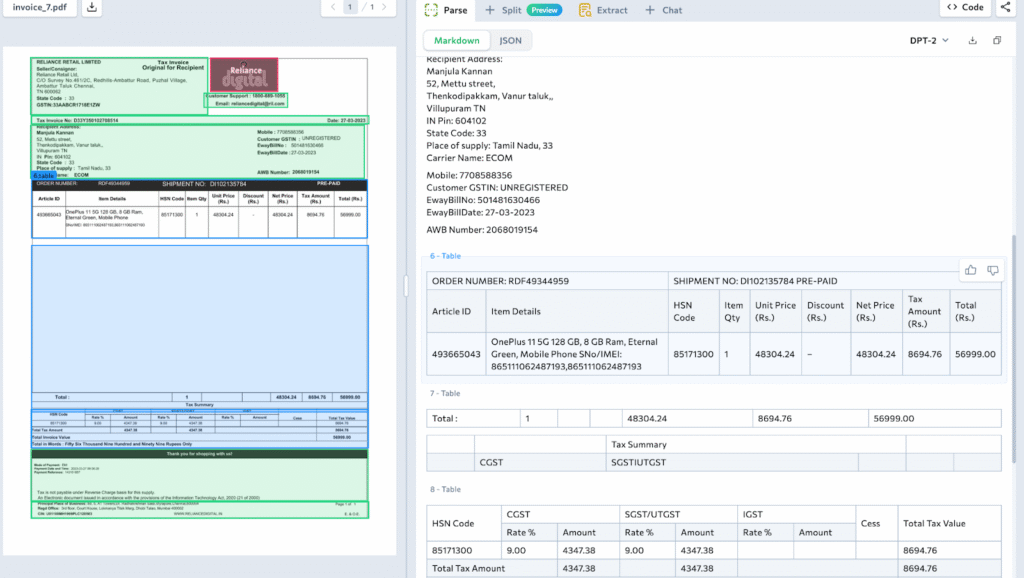
The parse() command is your Translator. It bridges the gap between human vision and machine intelligence by performing three critical tasks:
- OCR (Optical Character Recognition): It identifies the actual letters and numbers hiding in the pixels.
- Layout Analysis: It recognizes that a specific block of text is a “Figure” and another is a “Table.”
- Structured Output: It packages everything into a JSON response that preserves the content, layout, and coordinates of your document. Crucially, inside this JSON is a Markdown field. This Markdown format helps LLMs analyze and understand your document better.
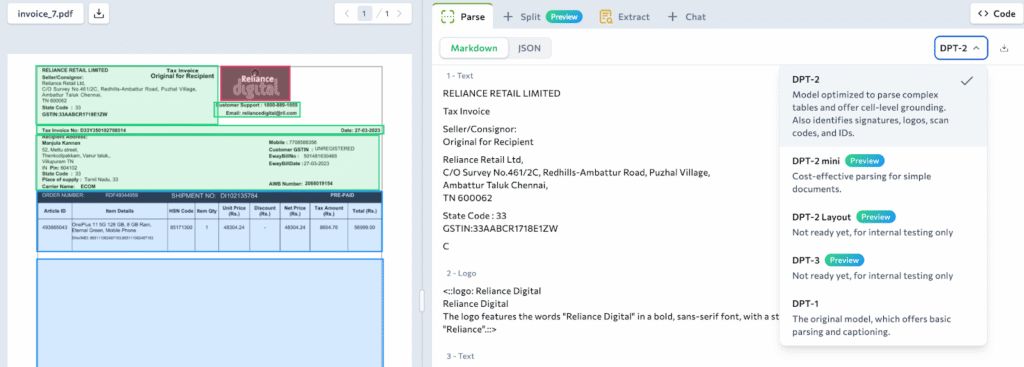
The magic behind this transformation is the Document Pre-Trained Transformer (DPT), a specialized model developed by LandingAI that powers ADE which “sees” the document’s structure and “reads” its content all in one go.
When we run the parse() command, the ADE client performs the heavy lifting and returns a specific object called a ParseResponse, a “bucket” containing everything the Translator found.
Python

# This 'response' variable is the ParseResponse object.

# We use split="page" to transform the document page-by-page.

response = client.parse(document=file_path, split="page", save_to="./output_folder") # optional: saves as {input_file}_parse_output.json
The Result: What is inside the bucket?
The ParseResponse object isn’t just a string of text; it is a rich JSON container. The most important part for us right now is .markdown, which is the raw material that ADE will read in the next step to find your specific data.
Python

# Let's look at the parsed text

print(response.markdown)
Step 3: The “Wish List” (Schema)
Now that the markdown data is exposed, we are ready to send in The Extractor.
But the Extractor cannot work blindly. If you just say “find value,” they might bring back legal disclaimers or page numbers. We need to be specific. We need a Wish List.
What is a Wish List? In ADE, it is called Schema, a strict set of instructions that commands: “I am looking for these specific gems. Find them and ignore the rocks.”
We use a tool in Python called Pydantic to write this list.
Pydantic is like a smart filter for your data: it inspects every piece of information to make sure it follows your rules before letting it enter your program.
Python

from pydantic import BaseModel, Field

# Define your schema as a python class

class InvoiceSchema(BaseModel):

    # Target #1: The Invoice ID

    # Rule: Must be a String

    invoice_number: str = Field(..., description="The unique ID of the invoice")

    # Target #2: The Total

    # Rule: Must be a Number (Float)

    total_amount: float = Field(..., description="The final total including tax")

    # Target #3: The Merchant

    # Rule: Must be a String

    vendor_name: str = Field(..., description="The name of the company issuing the invoice")
Now, we hand our Schema to the client and tell the Extractor to get to work. But wait—there’s a final conversion step needed to bridge the gap!
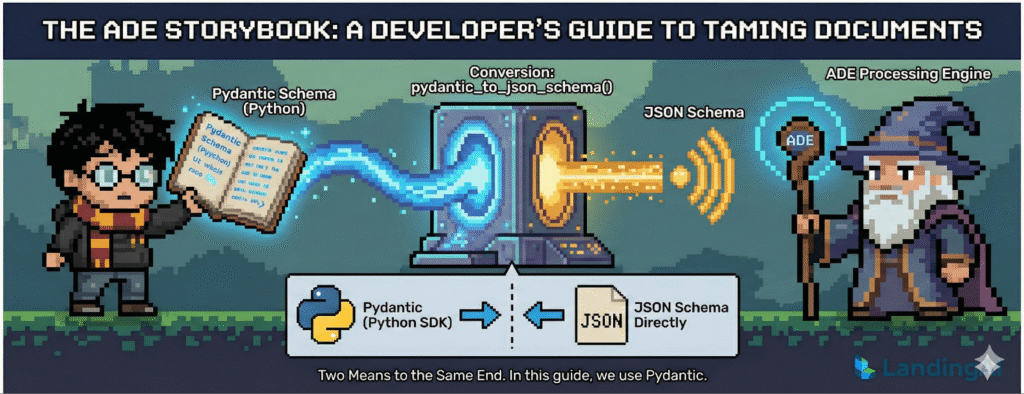
We need to convert the Pydantic class into a JSON schema. Why? This is because the ADE processing engine is language-agnostic; it doesn’t speak Python, but it perfectly understands JSON, the universal language for data structures. Think of this as translating your “Treasure Wish List” from a private notebook into a standardized radio signal that the DPT can interpret with 100% technical precision.
Pydantic vs. JSON Schema: Two Means to the Same End
ADE’s extract engine takes a JSON schema string. You have two ways to create one:
- Pydantic: Write a Python class, then convert it with the landingai-ade python SDK’s pydantic_to_json_schema() helper. Great when you’re building from scratch in Python.
- JSON Schema directly: Write the JSON yourself or load it from a .json file. Great when you already have schemas defined, or you’re working outside Python.
In this guide, we’ll use Pydantic for readability.
Step 4: The Extractor
Now we have translated our schema into a language that ADE understands, we can finally order the extraction to be done.
from landingai_ade.lib import pydantic_to_json_schema

# 1. Define your schema as a Pydantic class as above

# 2. Convert Pydantic class to Json schema
schema_json = pydantic_to_json_schema(InvoiceSchema)

# 3. Run extraction
# The Extractor looks at the parsed raw data (markdown) and follows the wish list (schema)
extracted_data = client.extract(markdown=response.markdown, schema=schema_json)

# 4. Retrieve Extracted Results
# Use .extraction to see the structured data that ADE found
print(extracted_data.extraction)
The Result:
The extracted result is also in JSON format.
{
  "invoice_number": "INV-2024-001",
  "total_amount": 150.00,
  "vendor_name": "Wizard Supplies Co."
}
🏆 Victory!
You have successfully turned a PDF into structured JSON.
- You Parsed: Turned pixels into text.
- You Defined a Schema: Told the AI what to look for.
- You Extracted: Got the exact data you needed.
👉 Coming Up in Part 2: Real documents are rarely this clean. What if your mountain is a messy pile of 20 different document types—receipts mixed with tax forms—all jumbled together?
In the next chapter, “Taming the Chaos,” we will meet The Splitter to organize messy documents automatically. Stay tuned!