
Welcome back, Developers!
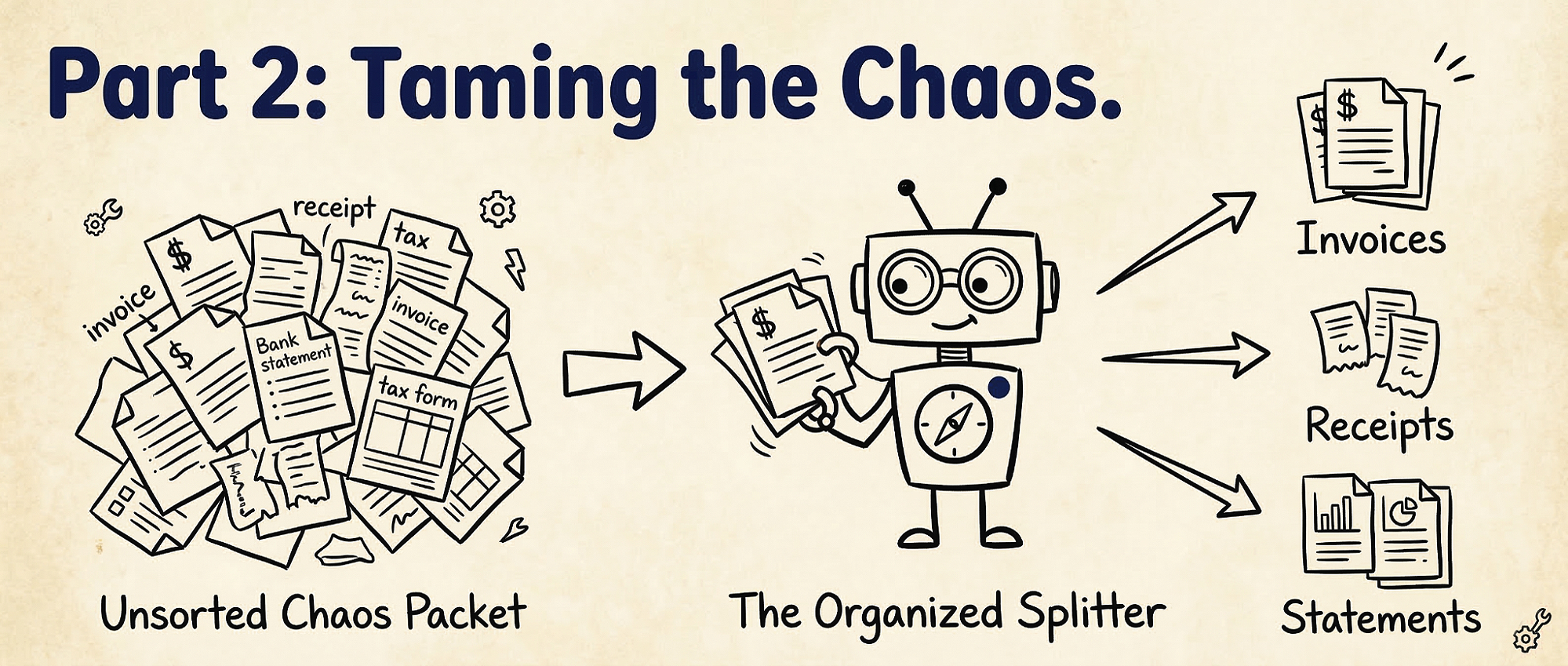
In Part 1, we mastered the “Baby Path”: we took a single, clean invoice and turned it into JSON. But in the Kingdom of Unstructured Data, things are rarely that tidy. Often, you will be handed a “Packet”—a 50-page PDF containing Invoices, Pay Stubs and Bank Statements all scanned together into one messy file. If you try to extract an “Invoice Number” from a Bank Statement, your commands will fail.
We need a way to untangle this mess. We need “ The Splitter”.
The Splitter
Think of splits as an assistant who takes a messy stack of mixed papers and automatically sorts them into near, labeled folders.
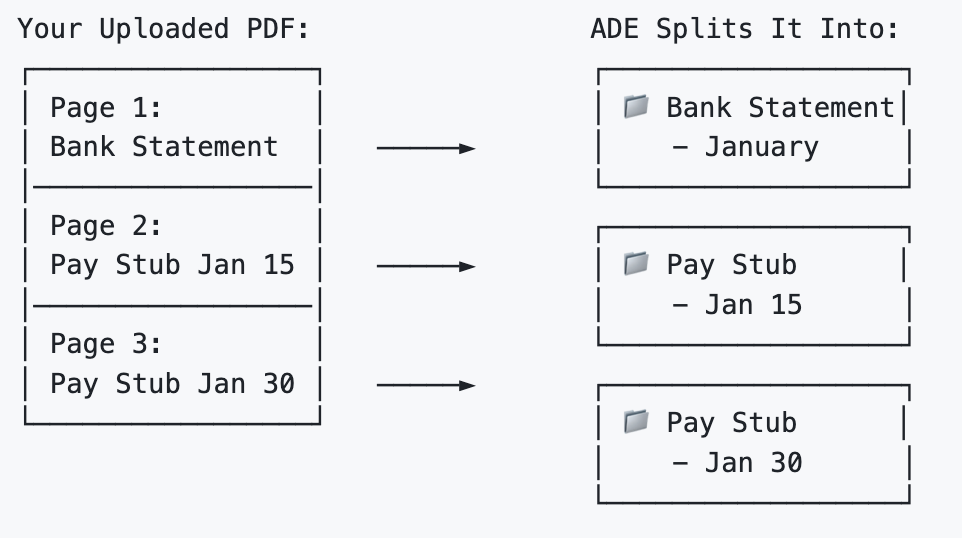
You upload ONE file containing different document types. ADE automatically separates them by type and even identifies distinct documents of the same type (like two different pay stubs).
Imagine you scanned 3 pages into a single PDF:
- Page 1: Bank statement for January
- Page 2: Pay stub from January 15
- Page 3: Pay stub from January 30
How to Split
Step 1: Define the Sorting Rules
We need to tell the Splitter what to look for. We do this by creating a list of “ Classes.”
- Name: The type you want (e.g., “Pay Stub”).
- Description(Optional): An Explanation to assist AI to better understand the type.
- Identifier (Optional): A specific keyword unique to that type (like “Payment Date”).
# Define your sorting rules
split_classes = [
    {
        "name": "Bank Statement",
        "description": "A monthly financial summary."
    },
    {
        "name": "Pay Stub",
        "description": "A document detailing an employee's earnings.",
        "identifier": "Payment Date" # Optional. Helps if you have multiple stubs
    }
]
Step 2: Run Split
Once your rules are set, you feed your parsed document into The Splitter.
import json
from pathlib import Path
from landingai_ade import LandingAIADE

client = LandingAIADE()

# Revisit Part 1 for document parsing basics. We need the parsed output for splitting.
response = client.split(
    markdown=Path("/path/to/parsed_mixed_document.md"),    split_class= json.dumps(split_classes),
        save_to="output_folder"  # optional: saves as {input_file}_split_output.json
)
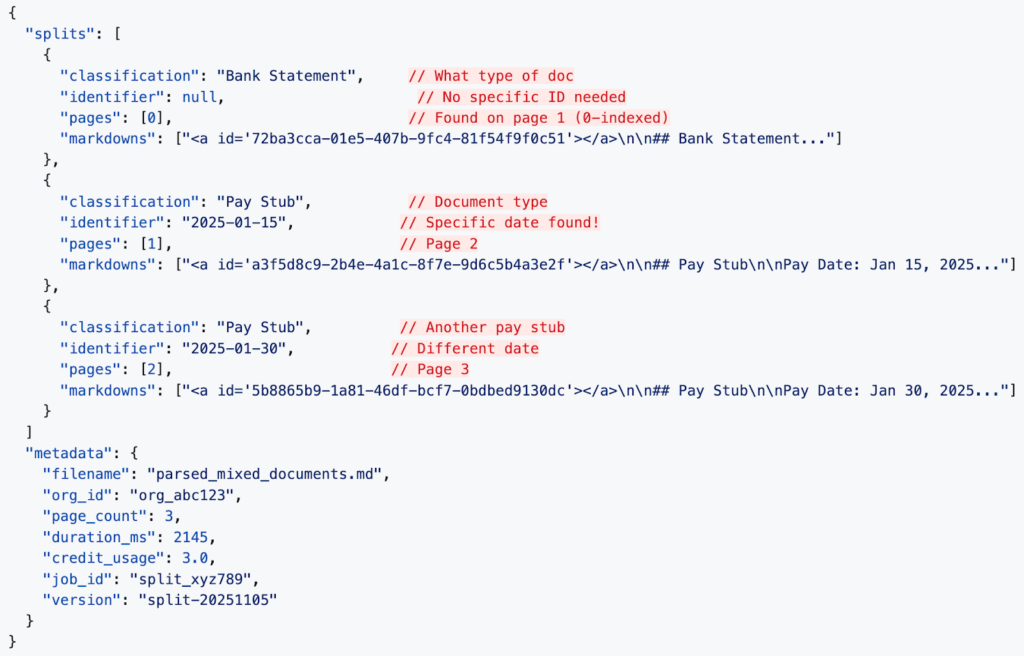
What ADE Returns:
The Combo Move (Sort → Extract)
Now that we have a clean and separated “folder”, we can loop through the sorted pile and only use the Extractor on the documents we actually need.
The Full Workflow:
import json
from pydantic import BaseModel, Field
from landingai_ade.lib import pydantic_to_json_schema

# 1. Define the Reference List (Schema) for the document we care about
class PaystubSchema(BaseModel):
    employee_name: str = Field(..., description="The name of the employee receiving the pay")
    net_pay: float = Field(..., description="The final amount paid after taxes")
    pay_period_end: str = Field(..., description="The date the pay period ended")

# 2. Group the documents by identifier first
# This handles the edge case where one document is fragmented across multiple splits
grouped_paystubs = {}

for split in split_response.get("splits", []):
    # We only care about Paystubs right now
    if split.get("classification") == "Pay Stub":
        doc_id = split.get("identifier")

        # Only group if an identifier exists
        if doc_id:
            if doc_id not in grouped_paystubs:
                grouped_paystubs[doc_id] = []

            # Collect the markdowns for this specific identifier
            grouped_paystubs[doc_id].extend(split.get("markdowns", []))

# 3. Loop through the grouped documents
for doc_id, markdowns in grouped_paystubs.items():

    # We merge all pages for this identifier to provide the full context for extraction
    merged_markdown = "\n".join(markdowns)

    # Run the extraction using a unique filename per identifier to prevent overwriting
    extract_response = client.extract(
        schema=pydantic_to_json_schema(PaystubSchema),
        markdown=merged_markdown,
        save_to=f"output_folder/{doc_id}_extract_output.json"
    )

    print(f"Results for Paystub ID {doc_id}:")
    print(extract_response.extraction)

# Now we have taken out all the relevant information we want for all pay stubs in this messy mixed document.
Now we have taken out all the relevant information we want for all pay stubs in this messy mixed document.

🏆 Victory!
Today, you’ve already learned the first three great arts:
- The How (Parsing): Translating the messy files into the machine language of Markdown.
- The Which (Splitting): Sorting a jumbled pile into neat, logical stacks of documents.
- The What (Extraction): Performing as “Extraction” to pull the gold from the right pages using a Schema.
👉 Coming Up in Part 3: The Data Map
You have mastered the How (Parsing), the What (Extraction), and the Which (Splitting). But what about Where?
In the next chapter, “ Trust the Map,” we will reveal the secrets of The Navigator (Visual Grounding)—how to find the exact pixel coordinates of your data on the page. If the Extractor finds a “Total Amount,” the Navigator shows you precisely where on the page that value is written. Stay tuned!